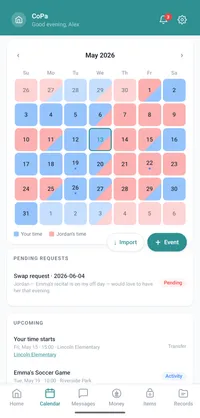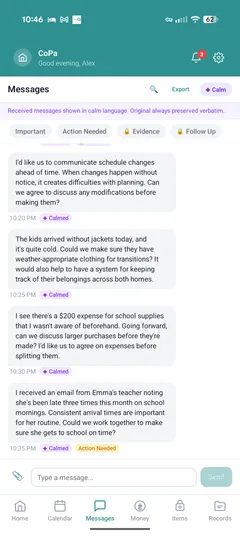
How CoPa works.
Two paths to the same record. Pick the one that matches your situation. You can switch later.
Pick your path.
Path A: Both parents on the app.
The default. You and your co-parent both install CoPa, log in, and share the same calendar, message thread, and expense ledger. One subscription covers both.
Choose this if your co-parent is willing to install and use the app.
Path B: SMS Relay.
You install CoPa. Your co-parent doesn't. Their texts come through to you via a CoPa-issued number, and your replies go back out as SMS. Every message is captured to the shared record without your co-parent installing anything.
Choose this if your co-parent has refused, ignored, or stalled on installing another app.
You can switch from Path B to Path A any time your co-parent changes their mind. The existing record stays intact and the relayed number turns off.
Path A — both parents on the app.
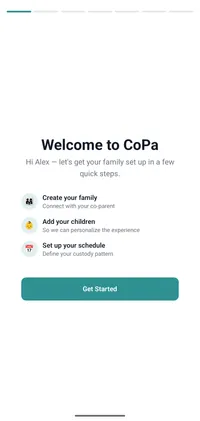
Sign up and set your schedule.
Create your CoPa account on Android. Add your kids — name, birthday, optional photo — and choose your custody pattern from the templates: 2-2-5-5, 3-4-4-3, alternating weeks, or build a custom rotation. Set transfer times and exchange locations for each day type. Setup takes about 8 minutes.
Invite your co-parent.
Send the invitation by email or SMS from inside the app. Your co-parent gets a link to install CoPa and create their account. The invitation is tied to your family, so they don't need a billing account or payment method — they're covered by your subscription. If they don't accept within 7 days, we send a single reminder.
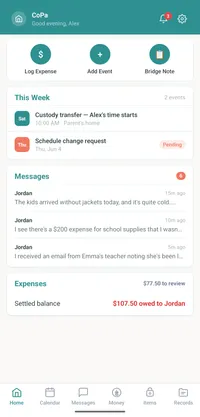
Start using the calendar and messages.
The shared calendar is live as soon as both parents are in. Schedule changes go through the request workflow — propose, approve, deny — and any approved change updates the calendar automatically. Messages flow through the topic-scoped threads. If you want to use Calm Reading, turn it on in Settings.
Add Bridge Notes at handoffs.
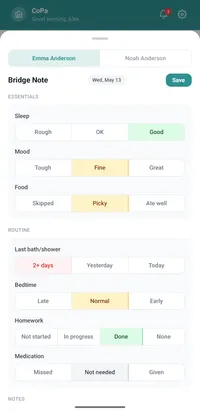
Bridge Notes are optional but most parents start using them within a week of setup. At handoff, the parent doing dropoff fills in a short note: sleep, mood, food, anything new with health or school. The receiving parent sees it as a notification before pickup. The full history is timeline-viewable per child and exportable as a PDF.
Path B — SMS Relay (your co-parent stays on SMS).
Sign up and set your schedule.
Same as Path A. Create your account, add your kids, set your custody pattern.
Enable SMS Relay.
In Settings, choose "My co-parent uses SMS." We assign you a CoPa-issued phone number. The setup screen shows you the number and gives you a one-tap option to share it with your co-parent. They text the new number like they would any other contact. The $7/month charge starts when the number is provisioned.
Receive and reply through CoPa.
When your co-parent texts the CoPa number, the message comes into your CoPa app as if it were any other in-app message. Calm Reading works on it. Topic categorization works on it. When you reply through the CoPa app, your reply is sent out as SMS from the CoPa number to your co-parent's phone.
Use everything else solo.
The calendar, expense ledger, document vault, private journal, and Bridge Notes all work whether or not your co-parent is on the app. If your co-parent ever decides to install CoPa, they accept the invitation and the relay turns off. The full SMS history stays on the shared record permanently.
What's identical regardless of which path you pick.
The shared record is the same in both paths. Same fields, same timestamps, same export format. An attorney reviewing your CoPa record cannot tell from the record alone whether your co-parent was on the app or on SMS Relay — the substance is identical.
Calm Reading, Bridge Notes, the private journal, the document vault, the expense ledger, and the universal share extension all work in both paths. The price difference is $7/month for SMS Relay. Everything else costs the same.
Switching from one path to the other.
Path B to Path A:
If your co-parent decides to install CoPa, send them a fresh invitation from the app. When they accept, SMS Relay automatically deactivates. The historical SMS record stays in place; new messages flow through the in-app threads.
Path A to Path B:
Less common, but possible. If your co-parent stops using the app or removes their account, you can re-enable SMS Relay. You'll get a new CoPa-issued number and re-share it with them.
In either direction, the record is preserved and continuous.
Common setup questions.
- How long does setup actually take?
- Path A, with both parents installing: about 15 minutes total — 8 for the inviting parent, 7 for the invited parent. Path B: about 12 minutes for the parent on the app; nothing for the parent on SMS beyond saving the new number to their contacts.
- Do both parents have to be on Android (or iOS)?
- Android is launching first. iOS is in development and will follow. While we're Android-only, both parents need an Android device for Path A. Path B works with any phone for the SMS-only parent.
- Can I import an existing custody schedule?
- Not yet via file import. You set up your schedule once using a template or custom pattern; the calendar then runs forward indefinitely. ICS export of your CoPa schedule is available immediately.
- What if I change my custody schedule later (court order, new agreement)?
- Edit the schedule in Settings. New custody days take effect from the date you set; past days on the calendar are unchanged. The change is logged on the audit trail.
- What if my co-parent and I disagree about something on the calendar?
- Use the schedule change request workflow inside the app. Propose, the other parent approves or denies, and the audit trail captures the whole exchange. If your dispute is bigger than a single change request, that's what your parenting coordinator or mediator is for.